


Electron has revolutionized desktop application development, empowering developers to build cross-platform experiences using familiar web technologies like HTML, CSS, and JavaScript. Giants like VS Code, Slack, and Discord are testaments to its power and flexibility. However, this convenience comes with a well-documented trade-off: performance. High memory consumption and potential memory leaks are common concerns that can degrade user experience, especially when applications are not carefully architected. The latest Electron News often revolves around this very challenge.
Recent discussions in the developer community have highlighted how external factors, such as operating system updates, can sometimes exacerbate underlying performance issues in Electron-based applications, leading to unexpected slowdowns and memory pressure. This underscores the critical need for developers to move beyond basic implementation and adopt a proactive approach to performance tuning and memory management. This article provides a comprehensive guide to understanding, debugging, and optimizing Electron applications. We will explore its core architecture, identify common pitfalls that lead to memory leaks, and provide practical code examples and best practices to help you build desktop applications that are both powerful and performant, drawing on insights from the broader Node.js News and JavaScript ecosystems.
Understanding Electron’s Architecture and Memory Model
At the heart of any performance optimization effort is a deep understanding of the platform’s architecture. Electron is not a monolithic entity; it’s a combination of Chromium for rendering UIs and Node.js for backend and system-level operations. This duality is managed through a multi-process architecture that is fundamental to how it allocates and manages memory.
The Main and Renderer Processes
Every Electron application has exactly one main process and one or more renderer processes.
- Main Process: This is the application’s entry point, running in a Node.js environment. It has access to all Node.js APIs and is responsible for managing the application’s lifecycle, creating and managing renderer processes (windows), and handling native OS interactions like menus, dialogs, and notifications.
- Renderer Process: Each browser window (`BrowserWindow` instance) in your app runs its own renderer process. This process is essentially a Chromium web page, responsible for rendering your HTML, CSS, and executing your UI-related JavaScript. It does not have direct access to Node.js APIs for security reasons, communicating with the main process via Inter-Process Communication (IPC).
This separation is crucial. A crash or memory leak in a single renderer process won’t typically bring down the entire application. However, it also means you have multiple V8 JavaScript engine instances and Chromium environments to manage, each consuming its own memory.
// main.js - The entry point for an Electron application

const { app, BrowserWindow } = require('electron');
const path = require('path');

function createWindow() {
  // Create the browser window (a renderer process).
  const mainWindow = new BrowserWindow({
    width: 800,
    height: 600,
    webPreferences: {
      // Preload script to securely bridge main and renderer processes
      preload: path.join(__dirname, 'preload.js'),
      // It's a good practice to keep contextIsolation enabled
      contextIsolation: true,
      // And disable nodeIntegration for security
      nodeIntegration: false,
    },
  });

  // Load the index.html of the app.
  mainWindow.loadFile('index.html');

  // Open the DevTools for debugging.
  mainWindow.webContents.openDevTools();
}

// This method will be called when Electron has finished initialization.
app.whenReady().then(() => {
  createWindow();

  app.on('activate', () => {
    // On macOS it's common to re-create a window in the app when the
    // dock icon is clicked and there are no other windows open.
    if (BrowserWindow.getAllWindows().length === 0) {
      createWindow();
    }
  });
});

// Quit when all windows are closed, except on macOS.
app.on('window-all-closed', () => {
  if (process.platform !== 'darwin') {
    app.quit();
  }
});
Identifying and Debugging Memory Leaks
Memory leaks occur when your application allocates memory for objects but fails to release it after they are no longer needed. Over time, this accumulated memory can slow down or even crash the application. In Electron, leaks can happen in both the main and renderer processes, and identifying them requires the right tools and techniques.

Tools for the Job
Fortunately, Electron provides access to the powerful debugging tools from Chromium and Node.js.
- Chromium DevTools: For renderer processes, the built-in DevTools are indispensable. The Memory tab allows you to take heap snapshots. A common technique is to take a snapshot, perform an action in your app that you suspect is causing a leak, and then take another snapshot. The “Comparison” view will show you which objects were allocated and not garbage collected between the two snapshots, pointing you directly to potential leaks.
- Node.js Inspector: To debug the main process, you can launch your Electron app with the `–inspect` flag (e.g.,
electron --inspect .). This allows you to connect a Node.js debugger, such as the one built into Chrome (viachrome://inspect), to analyze memory usage, profile CPU, and step through code in the main process.
A Common Pitfall: Lingering IPC Listeners
A frequent source of memory leaks in Electron applications is improperly managed event listeners, particularly for IPC. When a renderer process sets up a listener on an IPC channel, that listener can keep the renderer’s context alive even after its window is closed if not cleaned up properly.
Consider this leaky pattern where a listener is added but never removed.
// renderer.js - A common memory leak pattern

// INCORRECT: This listener is never removed.
// If this code runs multiple times (e.g., in a component that mounts/unmounts),
// multiple listeners will accumulate, causing a memory leak.
window.electronAPI.onDataReceived((event, data) => {
  console.log('Received data:', data);
  // Process the data...
});

// CORRECT: Proper cleanup.
// The listener should be removed when it's no longer needed.
const handleDataReceived = (event, data) => {
  console.log('Received data:', data);
};

// Add the listener
window.electronAPI.onDataReceived(handleDataReceived);

// When the component/view is destroyed, clean up the listener.
// This is crucial in frameworks like React, Vue.js, or Angular.
// For example, in a React component's useEffect cleanup:
// return () => {
//   window.electronAPI.removeDataReceivedListener(handleDataReceived);
// };
// The main process would need to expose a removal function via the preload script.
This is especially problematic in single-page applications built with frameworks like React or Vue.js, where components with listeners are frequently mounted and unmounted. The latest React News and Vue.js News often highlight the importance of component lifecycle hooks for resource cleanup.
Advanced Performance and Memory Optimization Techniques
Once you’ve mastered debugging, you can employ more advanced strategies to ensure your application runs smoothly. This often involves offloading heavy work from the main threads and being strategic about resource usage.
Offloading Work with Worker Threads
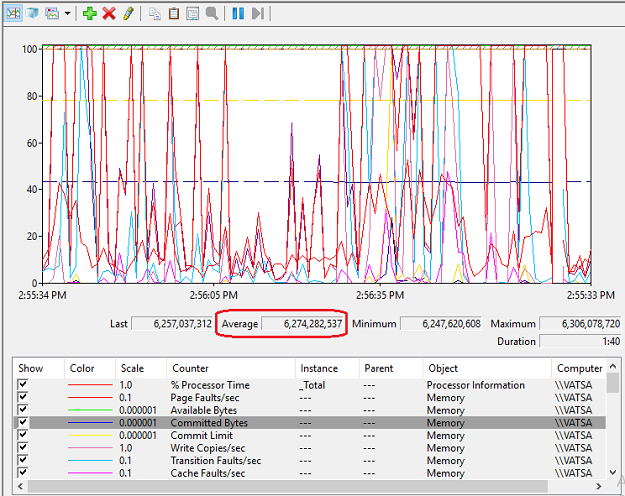
Both the main and renderer processes have a main thread. Any long-running, CPU-intensive task on these threads will block them, leading to a frozen UI or an unresponsive application. The solution is to move this work to a separate thread.
- In the Main Process: Use Node.js
worker_threads. This is perfect for tasks like complex data processing, file I/O, or cryptographic operations that don’t need direct access to UI elements. - In the Renderer Process: Use Web Workers. They are ideal for tasks like parsing large JSON files, performing complex calculations for data visualizations (a topic often seen in Three.js News), or image processing without freezing the user interface.
Here’s how you might use a worker_thread in the main process to handle a heavy task.
// main.js - Using a worker thread

const { Worker } = require('worker_threads');
const path = require('path');

ipcMain.on('process-heavy-data', (event, data) => {
  const worker = new Worker(path.join(__dirname, 'heavy-task-worker.js'), {
    workerData: data,
  });

  worker.on('message', (result) => {
    // Send the result back to the renderer process
    event.sender.send('heavy-data-processed', result);
  });

  worker.on('error', (error) => {
    console.error('Worker error:', error);
    event.sender.send('processing-error', error.message);
  });

  worker.on('exit', (code) => {
    if (code !== 0) {
      console.error(`Worker stopped with exit code ${code}`);
    }
  });
});

// heavy-task-worker.js
const { workerData, parentPort } = require('worker_threads');

// This code runs in a separate thread
function performHeavyCalculation(data) {
  // Simulate a long-running, CPU-intensive task
  let result = 0;
  for (let i = 0; i < data.iterations; i++) {
    result += Math.sqrt(i) * Math.sin(i);
  }
  return result;
}

const result = performHeavyCalculation(workerData);
parentPort.postMessage(result);
Considering Alternatives: The Rise of Tauri
While optimizing Electron is effective, it’s also worth noting the developments in the broader desktop app ecosystem. The latest Tauri News highlights a different approach. Tauri uses a Rust backend and the operating system’s native webview, which can result in significantly smaller application bundles and lower baseline memory usage. For projects where resource efficiency is the absolute top priority, exploring alternatives like Tauri can be a worthwhile endeavor.
Best Practices for Building Performant Electron Apps
Writing high-performance Electron applications is about cultivating good habits and adhering to best practices throughout the development lifecycle. This includes secure communication, efficient loading, and careful resource management.
Secure and Efficient IPC with `contextBridge`

Directly exposing Node.js or Electron APIs to the renderer process (`nodeIntegration: true`) is a major security risk. The modern, recommended approach is to use a preload script with `contextBridge` to expose a limited, secure API to the renderer.
This not only enhances security but also encourages better application architecture by forcing you to define a clear communication boundary between your UI and backend logic.
// preload.js - Securely exposing APIs to the renderer

const { contextBridge, ipcRenderer } = require('electron');

contextBridge.exposeInMainWorld('electronAPI', {
  // Expose a specific function to send data
  sendData: (channel, data) => {
    // Whitelist channels to prevent arbitrary channel access
    const validChannels = ['to-main'];
    if (validChannels.includes(channel)) {
      ipcRenderer.send(channel, data);
    }
  },
  // Expose a function to receive data
  onDataReceived: (channel, func) => {
    const validChannels = ['from-main'];
    if (validChannels.includes(channel)) {
      // Deliberately strip event as it includes `sender`
      ipcRenderer.on(channel, (event, ...args) => func(...args));
    }
  },
  // It's a good practice to also expose a cleanup function
  removeAllListeners: (channel) => {
    const validChannels = ['from-main'];
     if (validChannels.includes(channel)) {
        ipcRenderer.removeAllListeners(channel);
     }
  }
});
Additional Best Practices
- Lazy Load Everything: Don’t load modules, components, or assets until they are absolutely needed. Use dynamic
import()in your renderer code and `require()` modules inside functions in the main process where appropriate. This is a common theme in modern web development, echoed in Vite News and Webpack News. - Audit Your Dependencies: Every npm package you add increases your app’s memory footprint and potential attack surface. Regularly audit your dependencies and choose lightweight libraries when possible.
- Manage Windows and Resources: When a `BrowserWindow` is closed, ensure you dereference it in your main process to allow for garbage collection. Explicitly remove all associated listeners to prevent leaks.
Conclusion
Electron remains a dominant force in cross-platform desktop development, but its power demands a disciplined approach to performance. The perception of Electron apps as inherently slow and memory-hungry is often a symptom of unoptimized code rather than a fundamental flaw in the framework itself. As we’ve seen, the path to a performant application is paved with a solid understanding of the main/renderer architecture, diligent debugging with tools like Chromium DevTools, and the implementation of advanced techniques like worker threads.
By embracing best practices such as secure IPC with `contextBridge`, lazy loading, and meticulous resource cleanup, developers can overcome common performance bottlenecks. The principles discussed here are not just theoretical; they are actionable steps to building robust, efficient, and responsive desktop applications that deliver a first-class user experience. As the ecosystems around tools like TypeScript News and bundlers like Turbopack News continue to evolve, the ability to write optimized code will remain a key differentiator for successful Electron developers.